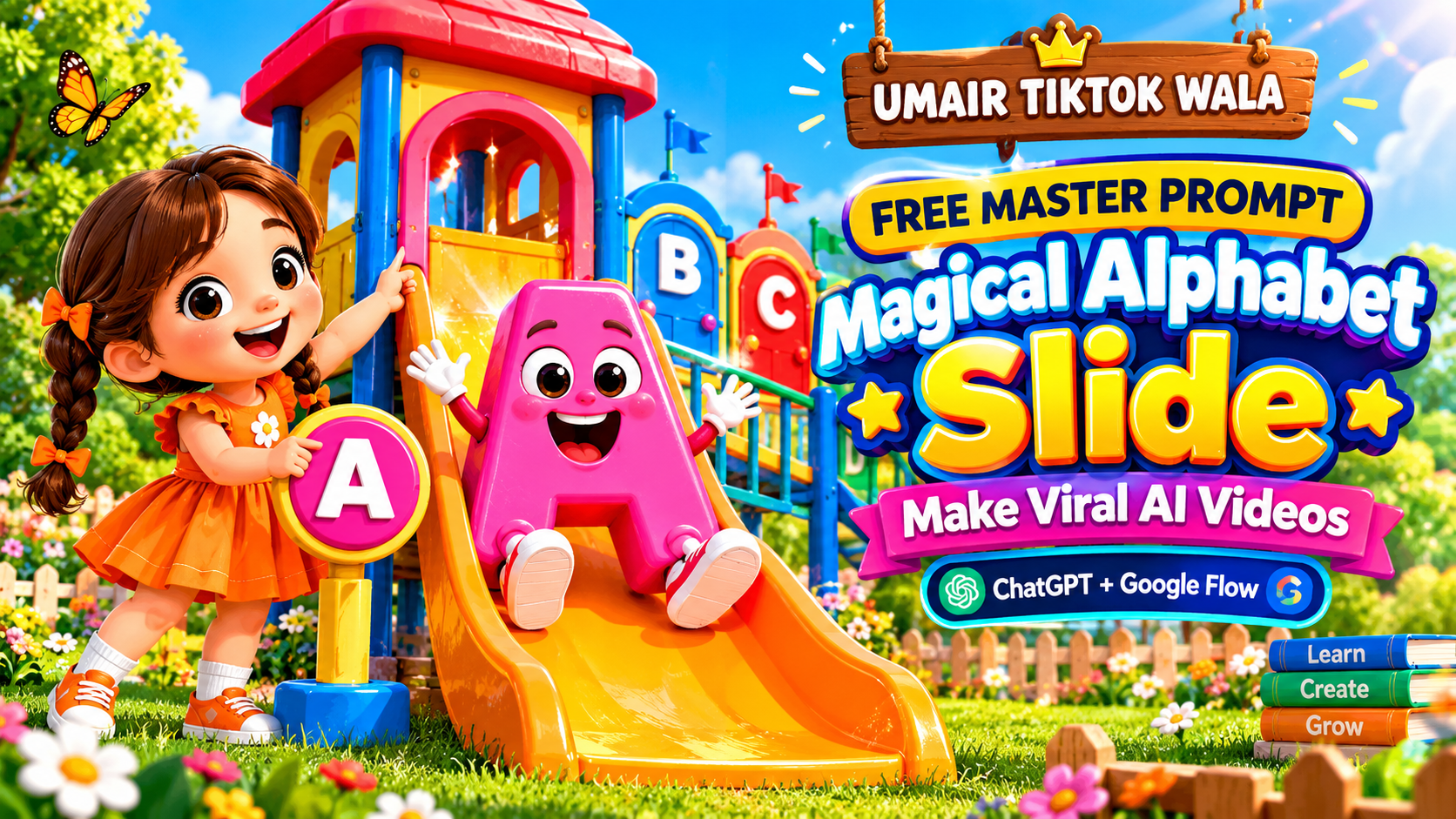
Learning the alphabet can be more fun when children see colorful and exciting pictures. A simple letter can become a magical character, animal, object, or story scene. That is where a Magical Alphabet Slide can help.
With AI image generation, you can now create beautiful alphabet slides in a short time. You can turn each letter from A to Z into a fun learning experience. In addition, you can choose different themes, characters, colors, and backgrounds for every letter.
In this guide, you will find a complete Magical Alphabet Slide Master Prompt. You will also learn how to use it, how to customize it, and how to create a full A-Z alphabet series.
This prompt is useful for teachers, parents, designers, bloggers, YouTube creators, and anyone who creates educational content for children.
What Is a Magical Alphabet Slide?
A Magical Alphabet Slide is a creative educational image based on one alphabet letter.
Instead of showing a plain letter on a simple background, the design combines the letter with a fun object or character. It can also include a magical environment, bright colors, soft lighting, and playful details.
For example, you can create:
- A for Apple in a magical garden
- B for Butterfly in an enchanted forest
- C for Cat in a colorful fantasy village
- D for Dog in a magical park
- E for Elephant in a beautiful jungle
As a result, children can connect the letter with a familiar word and image.
The main goal is simple. The letter should be easy to see, while the surrounding artwork makes the learning experience more exciting.
Why Create Alphabet Slides with AI?
Creating 26 unique alphabet designs can take a lot of time. However, AI can make the process much easier.
You can use one strong master prompt and change only a few details. For example, you can change the letter, object, character, and theme.
This method can help you create a complete alphabet collection faster.
AI alphabet slides can be used for:
- Preschool lessons
- Kindergarten classes
- Homeschooling
- Alphabet flashcards
- Educational websites
- YouTube videos
- Children’s books
- Classroom presentations
- Printable learning materials
- Social media content
- Digital learning resources
Moreover, you can create different versions of the same alphabet series. For example, one series can use animals, while another can use fruits or fantasy characters.
Magical Alphabet Slide Master Prompt
Below is the main prompt you can use with an AI image generator.
You can copy it and then change the information at the bottom.
The Complete Master Prompt
Create a beautiful and engaging children’s educational alphabet slide featuring the letter “[LETTER]”. Make the letter large, bold, clear, colorful, friendly, and easy for young children to recognize. Place the alphabet letter in the main focus of the image.
Add a cute and friendly [OBJECT OR CHARACTER] that is connected to the letter “[LETTER]”. Make the character or object colorful, attractive, age-appropriate, and fun for preschool and kindergarten children.
Create a magical and playful environment around the main subject. Add soft clouds, glowing light, stars, sparkles, colorful flowers, magical particles, and other simple fantasy elements. Keep the background beautiful but clean so that it does not distract from the main alphabet letter.
Use a high-quality children’s illustration style with colorful 3D cartoon elements, smooth shapes, soft shadows, friendly characters, bright details, gentle lighting, and a polished educational design.
Make the alphabet letter the most important element in the image. Keep it large and highly readable. Do not cover the letter with the character or background objects. Make the composition balanced, clean, cheerful, and suitable for children.
The final image should look like a professional children’s educational slide. It should be colorful, magical, friendly, creative, clear, and fun. Avoid scary elements, confusing details, random text, extra letters, watermarks, logos, distorted objects, and messy backgrounds.
Create a high-resolution image with sharp details, attractive lighting, clean composition, and a premium children’s educational style.
Letter: [LETTER]
Object or Character: [OBJECT]
Theme: [THEME]
Style: [STYLE]
Aspect Ratio: [ASPECT RATIO]
How to Use the Master Prompt
Using the prompt is easy.
First, choose the alphabet letter you want to create. Next, select an object or character that starts with that letter. Finally, choose a fun theme.
For example:
Letter: A
Object: Apple
Theme: Magical Garden
Style: Cute 3D Cartoon
Aspect Ratio: 16:9
You can then create another slide:
Letter: B
Object: Butterfly
Theme: Enchanted Forest
Style: Cute 3D Cartoon
Aspect Ratio: 16:9
In this way, you can continue from A to Z.
A-Z Magical Alphabet Ideas
You can use the following ideas to build a complete alphabet collection.
A – Apple
Create a large letter A in a magical garden. Add a bright red apple, colorful flowers, butterflies, and soft sunlight.
B – Butterfly
Create a colorful B with a friendly butterfly. Place the scene inside an enchanted garden with flowers and glowing particles.
C – Cat
Create a cute C with a playful kitten. Add a colorful fantasy house, flowers, clouds, and soft magical lighting.
D – Dog
Create a large D with a friendly puppy. Place the puppy in a beautiful magical park with trees, flowers, and colorful toys.
E – Elephant
Create an E with a cute baby elephant. Add a colorful jungle with plants, flowers, butterflies, and soft sunlight.
F – Fish
Create an F with a colorful fish. Use an underwater world with coral, bubbles, sea plants, and glowing light.
G – Giraffe
Create a G with a friendly giraffe. Add trees, flowers, clouds, and a colorful fantasy savanna.
H – Horse
Create an H with a beautiful friendly horse. Place it in a magical meadow with flowers, trees, and a bright sky.
I – Ice Cream
Create an I with a colorful ice cream cone. Add a playful fantasy background with clouds, stars, and colorful decorations.
J – Jellyfish
Create a J with a glowing jellyfish. Use an underwater fantasy world with bubbles, coral, and soft blue lighting.
K – Kangaroo
Create a K with a cute kangaroo. Add a colorful magical landscape with flowers, trees, and clouds.
L – Lion
Create an L with a friendly cartoon lion. Place it in a bright jungle with plants, flowers, and magical light.
M – Monkey
Create an M with a playful monkey. Add a colorful tropical forest with trees, vines, flowers, and butterflies.
N – Nest
Create an N with a cute bird nest. Add a friendly bird, tree branches, flowers, and a bright magical sky.
O – Owl
Create an O with a cute owl. Place it under a beautiful night sky with stars, a glowing moon, and magical sparkles.
P – Penguin
Create a P with a friendly penguin. Add snow, ice, colorful decorations, and a bright fantasy winter background.
Q – Queen
Create a Q with a friendly storybook queen. Add a beautiful magical castle, clouds, stars, and colorful decorations.
R – Rabbit
Create an R with a cute rabbit. Place it in a magical flower garden with butterflies and soft sunlight.
S – Sun
Create an S with a happy smiling sun. Add colorful clouds, flowers, trees, and a bright fantasy landscape.
T – Turtle
Create a T with a cute turtle. Add a colorful magical pond with flowers, plants, butterflies, and soft sunlight.
U – Umbrella
Create a U with a colorful umbrella. Add magical clouds, raindrops, flowers, and a bright rainbow.
V – Violin
Create a V with a beautiful violin. Place it in a magical music room with colorful notes and glowing decorations.
W – Whale
Create a W with a friendly whale. Add a magical ocean with colorful fish, bubbles, coral, and glowing water.
X – Xylophone
Create an X with a colorful xylophone. Add a playful musical classroom with stars, notes, and colorful objects.
Y – Yo-Yo
Create a Y with a bright colorful yo-yo. Add a playful fantasy playground with clouds, flowers, and fun decorations.
Z – Zebra
Create a Z with a cute zebra. Place it in a colorful magical safari with trees, flowers, clouds, and friendly animals.
Best Themes for Magical Alphabet Slides
One of the best things about AI alphabet prompts is that you can change the theme whenever you want.
Therefore, you do not have to create every alphabet slide in the same environment.
Here are some popular theme ideas.
Magical Forest
A magical forest is a great choice for children’s alphabet artwork.
You can add:
- Glowing trees
- Colorful flowers
- Butterflies
- Friendly animals
- Magical mushrooms
- Fireflies
- Sparkling particles
This theme works especially well for nature-related alphabet words.
Fantasy Kingdom
A fantasy kingdom can make your alphabet slides look like pages from a children’s storybook.
For example, you can add:
- Castles
- Towers
- Clouds
- Bridges
- Flags
- Friendly characters
- Magical creatures
This theme is ideal for children who enjoy fairy tales and fantasy stories.
Underwater World
An underwater theme can turn alphabet learning into an exciting ocean adventure.
You can include:
- Colorful fish
- Coral reefs
- Sea plants
- Bubbles
- Jellyfish
- Friendly whales
- Underwater castles
As a result, children can learn letters while exploring a colorful underwater world.
Space Adventure
Space is another exciting theme for children’s educational content.
You can add:
- Planets
- Stars
- Rockets
- Moons
- Friendly astronauts
- Colorful galaxies
- Space clouds
This theme can also work well for educational videos about space and science.
Dinosaur World
A dinosaur alphabet theme can be very attractive to young children.
Use cute cartoon dinosaurs instead of scary ones. Then add colorful trees, mountains, clouds, and simple prehistoric details.
This creates an exciting but friendly learning environment.
How to Keep Every Slide Consistent
If you are creating an entire A-Z series, consistency is very important.
For example, the letter A should not look completely different from the letter B. Otherwise, the collection may feel like separate images instead of one complete project.
Therefore, keep these elements consistent:
1. Art Style
Use the same illustration style across all letters.
For example, you can use a colorful 3D cartoon style for the entire collection.
2. Letter Position
Keep the main letter in a similar position on every slide.
This makes the collection look organized.
3. Lighting
Use similar lighting across the complete series.
For example, soft cinematic lighting can create a consistent look.
4. Character Style
If you use cartoon characters, keep their overall style similar.
5. Image Size
Use the same aspect ratio for all slides.
For example, use 16:9 for a presentation or YouTube project.
How to Make the Letter Easy to Read
The alphabet letter is the most important part of the design.
Therefore, it should always be easy to see.
Avoid placing too many objects around the letter. Also, do not allow characters or decorations to cover the main letter.
Use clear instructions such as:
Make the alphabet letter large and highly readable. Keep it as the main focus of the composition. Do not cover the letter with any character or object.
This simple instruction can help maintain the educational purpose of the image.
Recommended Image Sizes
The best image size depends on how you plan to use your alphabet slides.
16:9
Use 16:9 for:
- YouTube videos
- PowerPoint presentations
- Online classes
- Digital classrooms
- Educational presentations
1:1
Use a square format for:
- Social media posts
- Flashcards
- Educational graphics
- Website images
9:16
Use 9:16 for:
- YouTube Shorts
- Instagram Reels
- Mobile learning content
- Vertical educational videos
For a presentation-based alphabet project, 16:9 is usually a good choice.
Negative Prompt for Magical Alphabet Slides
Some AI image generators allow you to use a negative prompt.
You can use the following instructions:
Avoid blurry images, distorted letters, incorrect alphabet characters, extra letters, random text, spelling mistakes, unreadable typography, scary characters, dark horror themes, messy backgrounds, excessive details, deformed objects, distorted faces, low-quality rendering, watermarks, logos, cropped subjects, poor composition, and distracting elements.
This can help reduce common problems in AI-generated educational images.
Magical Alphabet Slides for Preschool Learning
Alphabet slides can be especially useful for preschool and kindergarten learning.
Young children often respond well to bright colors, simple shapes, friendly characters, and familiar objects.
For example, instead of teaching the letter A with text alone, you can show:
A + Apple + Magical Garden
The child can see the letter, recognize the object, and connect the two ideas.
Similarly:
B + Butterfly + Magical Forest
This creates a simple visual connection between the letter and the word.
However, the design should stay simple. Too many details can make the learning goal less clear.
Magical Alphabet Slides for Teachers
Teachers can use these AI-generated visuals in many ways.
For example, a teacher can create one slide for each letter and use the complete set during an alphabet lesson.
The slides can also be used for:
- Classroom presentations
- Interactive lessons
- Alphabet games
- Vocabulary practice
- Storytelling activities
- Digital worksheets
- Learning videos
In addition, teachers can create special alphabet themes based on the current lesson.
For example, a science-themed lesson can use space or animal alphabet slides.
Magical Alphabet Slides for Parents
Parents can also use alphabet slides for home learning.
A parent can display one letter at a time and ask the child simple questions.
For example:
Can you name another word that starts with this letter?
This turns a simple image into an interactive learning activity.
Magical Alphabet Slides for YouTube
You can also turn the alphabet slides into a complete YouTube learning video.
For example, the video can introduce one letter at a time.
A is for Apple.
B is for Butterfly.
C is for Cat.
You can add voice narration, background music, simple animations, and transitions.
As a result, a collection of static AI images can become a complete children’s learning video.
You can also create separate videos for different themes.
For example:
- Magical Animal Alphabet
- Space Alphabet
- Dinosaur Alphabet
- Underwater Alphabet
- Fairy Tale Alphabet
Magical Alphabet Slides for Educational Websites
Educational websites can use alphabet slides to make learning pages more attractive.
For example, you can create a dedicated page for every letter.
The page can include:
- Large alphabet image
- Letter pronunciation
- Example word
- Short definition
- Simple activity
- Downloadable worksheet
This approach can make an educational website more useful for both children and parents.
Tips for Better AI Alphabet Prompts
Creating a good AI prompt is not only about adding more words.
Instead, every part of the prompt should have a clear purpose.
Focus on One Main Letter
Always make one alphabet letter the main subject.
This helps the image stay focused.
Choose a Simple Object
Pick an object that children can easily recognize.
For example, apple, cat, dog, fish, or lion.
Use Friendly Characters
Friendly characters are usually a better choice for preschool content.
Avoid frightening or overly complex characters.
Keep the Background Simple
A beautiful background is useful. However, it should support the letter rather than compete with it.
Use Consistent Style
If you are creating A-Z slides, use the same style throughout the collection.
Common Mistakes to Avoid
Even a good prompt can produce poor results if the instructions are unclear.
Here are some common mistakes to avoid.
Making the Background Too Busy
A crowded background can hide the alphabet letter.
Using Too Many Characters
Too many characters can make the image confusing.
Making the Letter Too Small
The letter should remain one of the largest elements in the design.
Changing Styles Between Slides
Different styles can make the A-Z collection look inconsistent.
Adding Too Much Text
The main purpose of an alphabet slide is visual learning. Therefore, keep additional text limited.
Ignoring Image Quality
Always choose a suitable resolution for the final use.
Frequently Asked Questions
What is a Magical Alphabet Slide?
A Magical Alphabet Slide is a colorful educational image that combines an alphabet letter with a fun object, character, and creative environment.
What is the Magical Alphabet Slide Master Prompt?
It is a reusable AI prompt that helps you create alphabet slides with a consistent visual style. You can change the letter, object, theme, and other details to create new slides.
Can I create all 26 alphabet letters?
Yes. You can use the same master prompt for every letter from A to Z.
Can I change the theme?
Yes. You can use themes such as magical forests, fantasy kingdoms, underwater worlds, space, dinosaurs, jungles, or fairy tales.
Is this prompt suitable for children?
Yes. The prompt focuses on colorful, friendly, simple, and age-appropriate educational visuals.
Can I use these images for YouTube?
Yes. You can use alphabet slides as part of educational videos, presentations, thumbnails, and learning content.
How can I make all A-Z slides look similar?
Keep the same art style, lighting, composition, letter position, image size, and character style throughout the collection.
Why does AI sometimes create the wrong letter?
AI image generators can sometimes have trouble creating accurate text. To improve the result, clearly tell the AI that the letter must be large, clear, readable, and the main focus of the image.
Can I use different objects for each letter?
Yes. In fact, using a different object for each letter can make the learning experience more interesting.
Final Thoughts
A Magical Alphabet Slide is a simple but powerful way to make alphabet learning more visual and engaging.
With the right AI prompt, you can create colorful educational slides for all 26 letters. You can also change the theme and style to match your project.
The most important thing is to keep the alphabet letter clear and easy to recognize. At the same time, use colorful characters and magical environments to make the learning experience more enjoyable.
Start with the Magical Alphabet Slide Master Prompt above. Then replace the letter, object, theme, and style to create your own A-Z collection.
Whether you are a teacher, parent, designer, YouTube creator, or educational content creator, this prompt can help you build attractive alphabet learning content with less design work.
Create your first letter, experiment with different themes, and turn the complete alphabet into a fun visual learning journey from A to Z.
